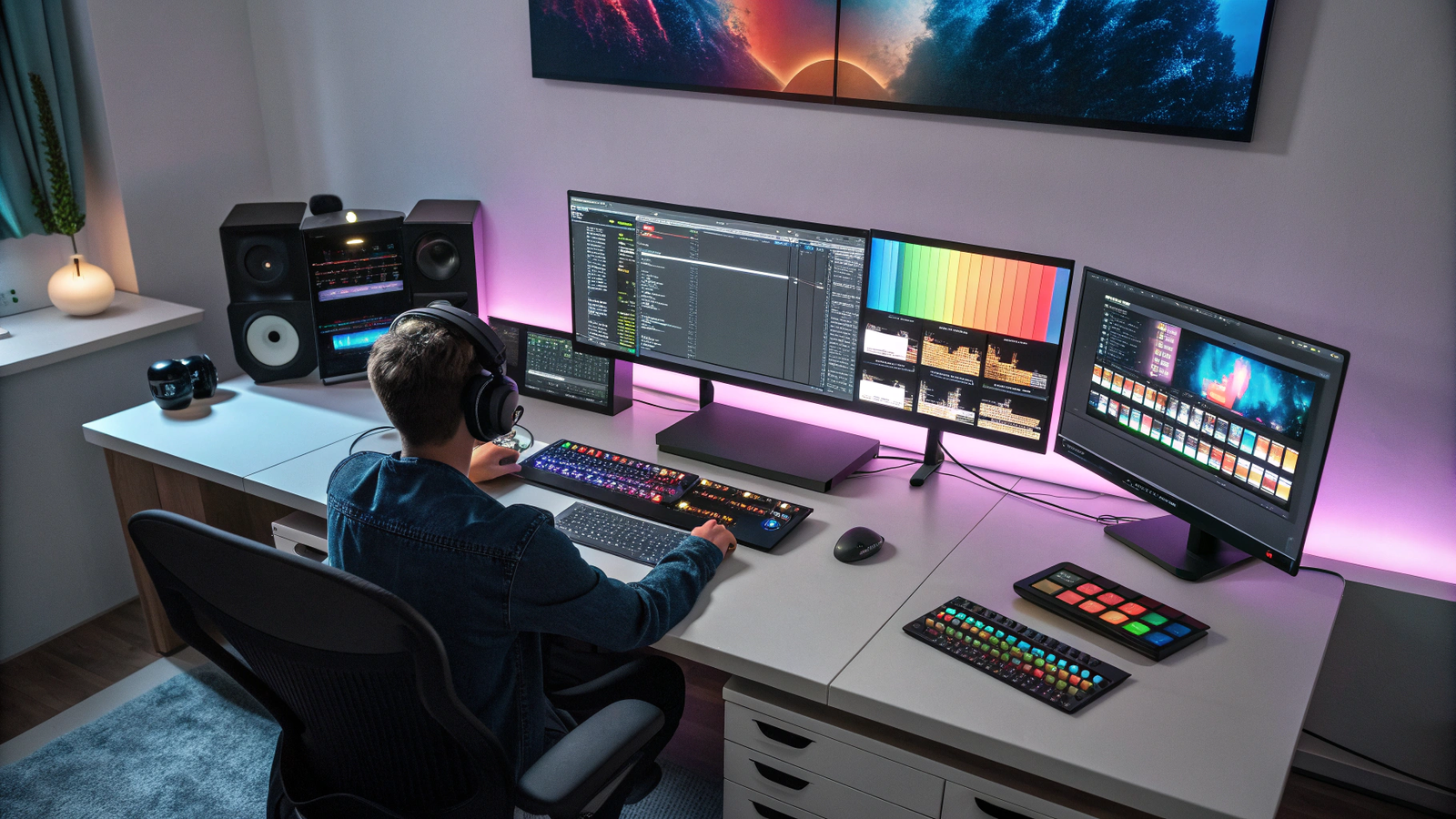
Introduction Free Video Editing Software Video content is dominating the internet in 2025. From TikTok to YouTube tutorials, everyone wants to create engaging videos. But as a beginner, expensive software like Adobe Premiere Pro can be intimidating and costly.
The good news is that you don’t need a big budget to start. At GPL Digital Hub, we have tested the best free video editors that are perfect for beginners and, most importantly, don’t leave ugly watermarks on your videos.
Here are our top 5 picks to get you started.
Why You Should Start with Free Video Editors?
Many beginners make the mistake of buying expensive software like Adobe Premiere Pro immediately. Here is why starting with free software is a smarter choice:
-
Zero Risk: You can test different tools without losing money. If you don’t like CapCut, you can simply switch to OpenShot.
-
Lower System Requirements: Most paid professional software requires a super-computer. Free tools like Shotcut run smoothly even on older laptops.
-
Focus on Creativity: Paid tools have thousands of confusing buttons. Free tools are simple, allowing you to focus on learning the art of cutting and storytelling first.
-
Community Support: Free tools usually have massive communities on YouTube where you can find free tutorials for almost any effect.
1. CapCut (Desktop & Mobile)
Originally famous for mobile editing, CapCut’s desktop version has become a powerhouse for creators. It is incredibly intuitive and packed with trending effects, transitions, and auto-captions.
-
Best For: Social media videos (TikTok, Reels, Shorts) and quick edits.
-
Pros: Very easy to learn, massive library of free assets and music.
-
Cons: The desktop version requires an internet connection for some features.
2. DaVinci Resolve (The Professional Choice)
This is arguably the most powerful free video editor available. It is used by Hollywood professionals for color grading. While it has a steeper learning curve, learning it means you are using industry-standard tools without paying a dime.
-
Best For: Aspiring filmmakers and those who want professional-grade color correction.
-
Pros: Extremely powerful features, no watermarks in the free version.
-
Cons: Can be overwhelming for absolute beginners and requires a good computer.
3. Shotcut (Open Source)
Shotcut is a completely free, open-source video editor. It doesn’t have the fanciest interface, but it supports a wide range of video formats and offers solid editing tools like 4K support and audio mixing. This is why it is considered one of the best free video editing software available today
-
Best For: Users who want a lightweight, no-nonsense editor on older computers.
-
Pros: Totally free, no hidden costs, supports many formats.
-
Cons: The interface looks a bit outdated compared to modern editors.
4. Clipchamp (Built into Windows)
If you are using Windows 11, you already have Clipchamp. Microsoft acquired this tool to provide an easy-to-use editor right out of the box. It’s great for basic trimming, adding text, and simple presentations.
-
Best For: Quick edits without installing new software.
-
Pros: Integrated with Windows, easy drag-and-drop interface.
-
Cons: Some premium stock assets require a paid subscription.
5. OpenShot (Simple & Effective)
OpenShot is designed to be as simple as possible. It’s great for very basic tasks like cutting videos, adding a simple title, or resizing clips. If you just need to make a quick edit without getting lost in menus, this is a good choice.
-
Best For: Absolute beginners doing very simple projects.
-
Pros: Very easy to navigate.
-
Cons: Can sometimes be slow or buggy with complex projects.
Conclusion: Choosing the Best Free Video Editing Software. We recommend starting with CapCut if you want something quick and trendy, or diving into DaVinci Resolve if you are serious about learning professional editing. Download one today and start creating!
Check out our review of Digital Tools here.
https://www.youtube.com/watch?v=sO7uV3_eFss
Frequently Asked Questions (FAQs)
1. Do these free video editors leave a watermark? No! All the editors in this list (CapCut, DaVinci Resolve, OpenShot) allow you to export videos without any ugly watermarks.
2. Which is the best editor for YouTube? For YouTube, we recommend DaVinci Resolve if you want professional quality. However, if you are making YouTube Shorts, CapCut is faster and easier.
3. Can I use these on a Mac? Yes, DaVinci Resolve and Shotcut work perfectly on both Windows and Mac devices. CapCut also has a dedicated Mac app.
4. Is DaVinci Resolve really free? Yes, the standard version is 100% free and includes 95% of the features. You only need the “Studio” version for very advanced Hollywood-level effects.
5. Do I need a powerful computer? For DaVinci Resolve, yes, you need a good graphics card. But for Shotcut or OpenShot, a basic office laptop is enough to edit standard HD videos.